Electronics 6 USB-C KVM Switches for Two-Computer Setups
P
By the Pickpedia Team
·6 picks compared
·Last verified October 2026
Affiliate disclosure: As an Amazon Associate, Pickpedia earns from qualifying purchases. Links on this page are paid links, and we may earn a commission at no extra cost to you. This never affects our picks or scores.
Quick answer
For two computers on one screen, pick a USB-C KVM switch matching your ports and resolution. Full-function USB-C or Thunderbolt models handle single-cable video, data, and pass-through charging. Mixed HDMI plus USB-C units suit a PC and laptop combo. Confirm every device supports DP Alt Mode first.
6 USB-C KVM Switches for Two-Computer Setups at a glance
Why you can trust this guide
We compared these picks using verified manufacturer specifications, available manuals and documentation, current retailer listings, and patterns in owner feedback, alongside editorial research. We focus on measurable differences such as performance, capacity, usability, and build quality. Pickpedia does not present editorial research as laboratory testing, and we do not claim hands-on testing unless it was actually performed.
How we chose: We compared six USB-C KVM switches across bandwidth, supported resolution, charging wattage, port layout, and switching method.
Running two machines on a single monitor gets messy fast, and a USB-C KVM switch cleans up the tangle. These units let one keyboard, mouse, and display serve both computers, with a button press to jump between them. Some carry video, data, and power through a single cable, while others mix HDMI and USB-C inputs.
Our picks span simple two-Type-C setups to Thunderbolt-grade docking switches with dual-monitor support. Every recommendation ties back to the maker's stated specs and how owners describe real desk use. Match the switch to your ports, your resolution target, and whether you need pass-through charging.
Our top picks
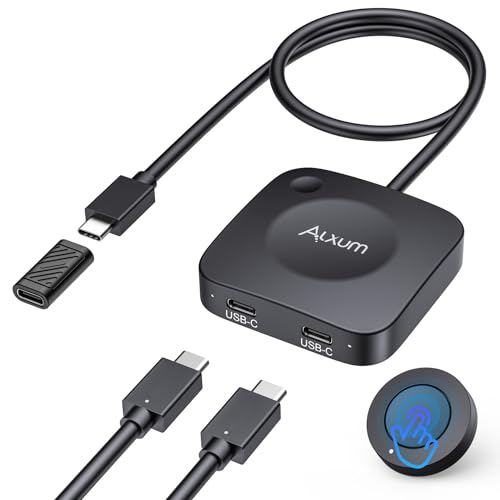
Alxum pairs 20Gbps data throughput with an 8K at 30Hz or 4K at 144Hz ceiling, which covers demanding creative and gaming displays. A wireless remote plus an onboard button gives two ways to jump between machines. Pass-through delivery reaches 140W, so a hungry laptop stays topped up while you switch. It runs across Windows, macOS, and Linux with no software to install. One caveat owners flag: all three USB-C connections must support DP Alt Mode, and dock pigtails over 50cm can drag performance down, so a direct connection works best.
Data speedUp to 20Gbps
Max resolution8K at 30Hz / 4K at 144Hz
Charging140W pass-through
ControlWireless remote and button
Pros
- High 20Gbps data throughput
- Strong 140W pass-through charging
- Wireless remote plus onboard button
Cons
- Requires DP Alt Mode on all three ports
- Dock pigtail length can limit performance
Check price on Amazon ›
Hearvo takes a flexible route by accepting HDMI plus USB-A from one computer and a full-function USB-C cable from the other. That layout suits a tower paired with a laptop or Mac mini. Four USB ports, three Type-A and one Type-C, let both machines share peripherals at USB 3.0 speeds up to 5Gbps. HDMI output tops out at 4K at 60Hz with HDCP 2.2 for protected playback, and Adaptive EDID keeps the picture steady through switches. A button and a wired remote both control it. The mixed-input design means it is not aimed at two identical USB-C laptops.
InputsHDMI + USB-A and USB-C
Max resolution4K at 60Hz
USB ports3x USB-A, 1x USB-C, 5Gbps
ControlButton and wired remote
Pros
- Handles mixed HDMI and USB-C sources
- Four shared USB 3.0 ports
- Adaptive EDID prevents flicker on switch
Cons
- Not ideal for two identical USB-C laptops
- Video capped at 4K at 60Hz
Check price on Amazon ›
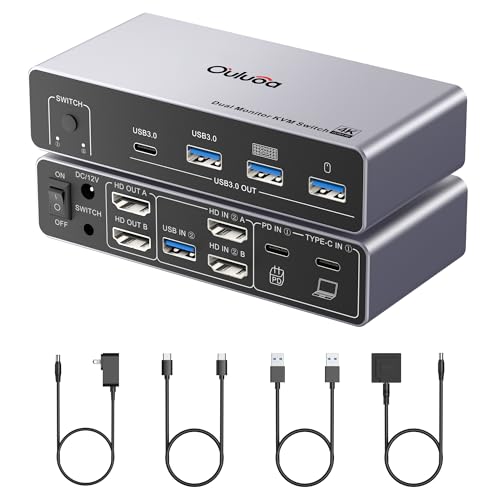
Ouluoa steps up to two HDMI monitors in extended or mirrored mode, controlling one desktop and one laptop from a single keyboard and mouse. Each screen runs 4K at 60Hz, with backward support for 1080P and 720P. Three USB 3.0 ports and one USB-C port share drives, printers, and wireless receivers at 5Gbps. A dedicated 12V adapter feeds an 80W PD port, so high-draw devices like external drives get stable power without leaning on the computer. A wired remote handles switching. Note that macOS USB-C runs SST only, so Mac users lose independent dual-screen extension.
Monitors2x HDMI, extend or mirror
Max resolution4K at 60Hz per screen
USB ports3x USB 3.0, 1x USB-C
Power80W PD, external 12V adapter
Pros
- Drives two independent HDMI monitors
- External adapter powers demanding drives
- Dedicated 80W PD for the laptop
Cons
- macOS limited to SST single-screen mode
- HDMI cable runs must stay short
Check price on Amazon ›
Lemorele keeps things compact for two USB-C output devices such as laptops and game consoles feeding one HDMI display. A single physical button flips the active screen, and shared peripherals cover keyboards, mice, storage, and headsets with a mic. Video reaches 4K at 60Hz over an HDMI 2.0 cable, and a 100W PD port supplies up to 60W to the connected laptop. It is driver-free and slips into a bag easily. The maker is clear that both sources need full-function DP Alt Mode ports and that it should connect directly to the host, not through a dock, so most desktops are ruled out.
Devices2x USB-C DP Alt Mode
Max resolution4K at 60Hz
Charging100W PD port, up to 60W out
ControlOne-click physical button
Pros
- Palm-sized and driver-free
- Simple one-click switching
- Shares keyboard, mouse, and headset
Cons
- Not recommended for desktop hosts
- Must connect directly, no dock daisy-chain
Check price on Amazon ›
Cable Matters targets people who already own a USB-C or Thunderbolt 4 dock and want two laptops to share it like a KVM. It moves data at 20Gbps and pushes video to 8K at 30Hz or 4K at 144Hz on Windows, 4K at 60Hz on macOS. The listing names a long roster of tested Dell, HP, LG, and CalDigit gear, which helps confirm fit before buying. An RF remote switches hosts without drivers, and 140W pass-through charges the active machine. Owners should note its 20Gbps bandwidth sits below a 40Gbps direct link, so a busy dock may see reduced resolution or monitor count.
Data speedUp to 20Gbps USB4
Max resolution8K at 30Hz / 4K at 144Hz
Charging140W pass-through
ControlRF remote
Pros
- Long list of verified dock compatibility
- Turns a dock into a two-computer switch
- 140W charging to the active laptop
Cons
- 20Gbps sits below a 40Gbps direct link
- Requires the included USB4 cables
Check price on Amazon ›
MINIX K1 wraps dual USB-C inputs in an aluminum alloy shell and pushes 4K at 120Hz HDR for smooth, vivid output. Front ports, one USB-C and two USB-A, keep a keyboard, mouse, drives, and a phone plugged in without shuffling cables. A 100W PD 3.0 port powers the active device from your existing charger. It works across Windows, macOS, Linux, Android, and Harmony OS, and a button handles switching. Two full-featured USB-C cables come in the box. Reaching 4K at 120Hz needs an HDMI 2.1 cable you supply, and it will not pair with Apple monitors that lack an HDMI input.
InputsDual USB-C
Max resolution4K at 120Hz HDR
Charging100W PD 3.0
Front ports1x USB-C, 2x USB-A
Pros
- High 4K at 120Hz HDR output
- Sturdy aluminum alloy shell
- Handy front-facing accessory ports
Cons
- HDMI 2.1 cable not included
- Not compatible with HDMI-less Apple monitors
Check price on Amazon ›
What to look for
Check DP Alt Mode first
A USB-C KVM switch only carries video when your computer's port supports DP Alt Mode, sometimes called full-function or Thunderbolt. Many desktop USB-C ports and phone charging ports lack it, so confirm every connected device before choosing. Skipping this check is the top reason people hit a black screen.
Single-cable versus mixed inputs
Some switches take one full-function USB-C cable per computer for video, data, and power together. Others accept HDMI plus USB-A from one machine and USB-C from the other, which suits a desktop tower paired with a laptop. Match the input style to the ports your two machines actually have.
Resolution and refresh headroom
Video ceilings here range from 4K at 60Hz to 8K at 30Hz and 4K at 120Hz HDR. Higher targets often need a specific cable, such as HDMI 2.1 for 120Hz. Remember that macOS frequently caps at a single 4K at 60Hz screen, so Mac users should plan around that.
Charging and switching method
Pass-through delivery spans 60W to 140W and typically charges only the active computer, not both at once. Decide whether a wireless or RF remote matters for hiding the unit, or whether a simple onboard button suits your desk. Both approaches skip driver installs entirely.
Frequently asked questions
Do these switches work without installing software?
Yes. Every unit here is plug and play across common systems, so you connect the cables and switch with a button or remote. No drivers are needed on Windows, macOS, or Linux.
Can I run two monitors through a USB-C KVM switch?
Some can. The Ouluoa drives two HDMI screens in extend or mirror mode, and dock-based models like Cable Matters can output multiple monitors on Windows with an MST dock. On macOS, expect a single display in most cases.
Will the switch charge both computers at the same time?
No. Pass-through charging powers only the currently connected and active machine. The unused computer receives no power until you switch to it, which is standard across these designs.
Why do I see a black screen after connecting?
The most common cause is a USB-C port that does not support DP Alt Mode. Charging-only ports and many desktop ports cannot output video. Some models also fail when daisy-chained through a dock instead of connected directly to the host.
Do I need to buy extra cables?
Sometimes. Single-cable USB-C models often include their USB-C cables, but HDMI cables are usually not included. High refresh targets like 4K at 120Hz require an HDMI 2.1 cable you provide separately.
Are these compatible with Mac mini and MacBook?
Yes, with limits. They work with macOS, though Apple systems typically support one extended display over USB-C. Note that MINIX K1 needs an HDMI monitor input, so it will not pair with Apple displays lacking an HDMI port.
What is the difference between 20Gbps and 40Gbps performance?
The 20Gbps switches move data quickly but sit below a direct 40Gbps Thunderbolt link. When sharing a high-end dock, that gap can reduce maximum resolution, refresh rate, or the number of monitors compared to plugging straight in.
Can I use a wireless keyboard and mouse with these?
Yes. The shared USB ports accept wireless receivers along with wired keyboards, mice, printers, drives, and other peripherals. Both computers gain access to whatever you plug into the shared ports after switching.
The verdict
Alxum 20Gbps USB C Switch for USB-C/Thunde...
9.2/10
For most two-laptop desks, the Alxum earns Best Overall with its 20Gbps speed, 140W charging, and dual switching options. Own a Thunderbolt dock already? The Cable Matters slots in cleanly thanks to its verified compatibility list. Mixing a tower with a laptop points to the Hearvo, while dual-screen users should look at the Ouluoa. Gamers chasing smooth motion get 4K at 120Hz HDR from the MINIX K1, and the Lemorele keeps a two-device setup simple. Confirm DP Alt Mode support before buying any of them.
Check price on Amazon ›
Our top pick, secure checkout via Amazon
Note: Availability and specifications change often. Always confirm the current details on Amazon before buying.